MongoDB Geolocation Tutorial with MongoDB Compass

Introduction
Geospatial data allows us to store and query locations (points, areas, routes) in a database. MongoDB is a great tool for handling geospatial data in GeoJSON format (as “Point”, “Polygon”, etc.) and provides powerful querying capabilities for spatial data. In this tutorial, we will use MongoDB Compass (a graphical UI for MongoDB) to learn how to work with geolocation data. We will walk through setting up MongoDB and Compass, importing a real geospatial dataset for Bulgaria, and performing various geospatial queries.
By the end of this tutorial, you will know how to:
- Import GeoJSON data (e.g. landmarks or points of interest in Bulgaria) into MongoDB via Compass.
- Structure the data to support geospatial queries (using GeoJSON format for coordinates).
- Create a 2dsphere geospatial index on the location field.
- Run geospatial queries in Compass to find places near a location, within a certain area or distance, and even combine these with other filters (e.g., find restaurants near a given point).
- Tackle some practice challenges to solidify your understanding.
Prerequisites and Setup
Before we dive into geospatial features, we need to get MongoDB and Compass up and running:
-
Install MongoDB Community Edition if you don’t have it – Download and install MongoDB on your system (Windows, Linux, or MacOS). During installation on Windows, you can choose to also install Compass. On Linux/Mac, or if you skipped Compass, don’t worry – we’ll install it next. Make sure the MongoDB server (
mongod) is running (on localhost at the default port 27017). -
Install MongoDB Compass if you don’t have it – Compass is the official GUI for MongoDB. MongoDB provides Compass for all major platforms (How To Use MongoDB Compass | DigitalOcean). Download the MongoDB Compass installer from the official MongoDB downloads page and install it. Once installed, launch Compass.
-
Connect to MongoDB – In Compass’s welcome screen, you’ll be prompted to connect to a MongoDB instance. If you installed MongoDB locally, simply connect to the default
mongodb://localhost:27017. You can leave authentication off if none is set. Click Connect. Compass should successfully connect and show your MongoDB server, ready to use.Compass Tip: If you see a list of databases (like
admin,config,local), you know you’re connected. We will create our own database for this tutorial in the next step.
Importing Geospatial Data for Bulgaria
Now that the environment is ready, let’s import a real dataset of geospatial points for Bulgaria. We will use a dataset of points of interest (POIs) in Bulgaria – for example, landmarks, tourist attractions, or other noteworthy places. Ideally, this data is in GeoJSON format (GeoJSON is a JSON standard for encoding geographic data).
Getting the Data: One convenient source of such data is OpenStreetMap. The Humanitarian OpenStreetMap Team provides an export of Points of Interest for Bulgaria as a GeoJSON file (about 4.3 MB, updated March 2026) (Bulgaria Points of Interest (OpenStreetMap Export)). You can download this file (e.g., hotosm_bgr_points_of_interest_points_geojson.zip) which contains POI data. For the purposes of our tutorial, you might use a subset of this data filtered to Bulgaria.
Alternatively, use any GeoJSON dataset of Bulgaria that includes coordinates – for instance, a curated list of Bulgaria landmarks or cities in GeoJSON. The key is that the data should contain latitude/longitude coordinates for each entry.
Creating a Database and Collection: In Compass, create a new database to store this data. Click the New Database button (in the left navigation). Name the database something like bulgaria_geo and the collection places (you can choose any names). Click Create Database.
Importing via Compass: MongoDB Compass allows importing JSON data directly into a collection (Import and Export Data - Compass - MongoDB Docs). To import the GeoJSON POI file into the bulgaria_geo.places collection:
- In Compass, select the
bulgaria_geodatabase and click on theplacescollection (it should be empty initially). - Click on Add Data > Import File. In the Import dialog, select your downloaded GeoJSON file. For File type, choose “JSON”. Then click Import.
Compass will read the JSON and import the documents. If the file was a GeoJSON “FeatureCollection”, Compass may import it as one large document (which we don’t want). In that case, you might need to modify the file by removing the top-level FeatureCollection wrapper and use just the array of features. Ensure the file is a JSON array of objects (each object representing one feature/place) or one JSON object per line, so that Compass treats each as a separate document. For our dataset, it should already be in a suitable format (each POI as a feature object in an array).
After a successful import, Compass will show the documents in the collection. Each document corresponds to one point of interest in Bulgaria.
Data Format: Let’s examine the structure of an imported document (you can click on a document in Compass to view its fields). It will likely look something like this (example):
{
    "_id": ObjectId("..."),            // MongoDB’s unique ID for the document
    "type": "Feature",
    "geometry": {
        "type": "Point",
        "coordinates": [23.319941, 42.698334]
    },
    "properties": {
        "name": "Some Landmark",
        "amenity": "fountain",
        "city": "Sofia",
        ... // other attributes about the point
    }
}
Each document from GeoJSON has a geometry field containing a GeoJSON object. In this example, the geometry is a Point with coordinates [23.319941, 42.698334]. Important: GeoJSON coordinates are always in the form [longitude, latitude] (x, y). Longitude (X) comes first and must be between -180 and 180, and latitude (Y) second between -90 and 90. Sofia’s longitude ~23.3°E, latitude ~42.7°N, so it fits these ranges. If your data has coordinates as [lat, lon] you must swap to [lon, lat] for MongoDB’s geospatial features to work correctly.
The properties field holds other information (like name, category, address, etc.). We can use those for filtering non-geographically, but the focus will be on the geometry field for geospatial queries.
Before we can run spatial queries, we need to ensure the data is indexed for geolocation and in the proper structure. Thankfully, our documents are already in GeoJSON format (with type: "Point" and a coordinates array), which is exactly what MongoDB’s geospatial queries expect. Now we just need to create a geospatial index.
Structuring Data and Creating a 2dsphere Index
MongoDB requires a geospatial index on the location field to efficiently run geo queries (and some queries like $near won’t work at all without an index). In our case, the location is stored in the geometry field of each document. We will create a 2dsphere index on this field. A 2dsphere index tells MongoDB that the indexed data is on a spherical surface (the earth) and supports spherical geometry calculations (distances, intersections, etc.)
What is a 2dsphere Index? It’s a special index for GeoJSON data that allows queries like “find all points within X meters of here” or “which points fall within this polygon” to execute efficiently. In fact, a 2dsphere index supports all of MongoDB’s geospatial query operators ($near, $geoWithin, $geoIntersects, etc.) on GeoJSON objects.
Creating the Index in Compass: MongoDB Compass makes index creation easy:
- In Compass, navigate to the
bulgaria_geo.placescollection (the collection with our Bulgaria data). - Click on the Indexes tab (next to Schema and Documents tabs).
- Click Create Index. A form will appear to define the new index.
- Under “Index Fields”, click “Add Field”. Enter the field name that contains the GeoJSON point. In our data, this is
geometry. For type, select 2dsphere from the dropdown (this specifies a 2dsphere geospatial index). - Click Create Index to build it.
After a moment, you should see the new index listed, e.g. { "geometry": "2dsphere" }. We have now indexed the geometry field for geospatial queries. (If an error occurs, double-check that all documents have a valid GeoJSON structure. An invalid geometry – e.g., coordinates array empty or a malformed polygon – can cause index creation to fail.)
Why the index? With the 2dsphere index in place, MongoDB knows to treat the geometry data as geospatial coordinates on a sphere. Many geospatial queries will only work if such an index exists on the field. For example, the $near operator (to find nearest points) requires a geospatial index on the queried field. Now that we have the index, we can start running queries.
Geospatial Queries with MongoDB Compass
We will explore several types of geospatial queries:
- Finding places near a given point.
- Finding places within a certain distance or area.
- Using
$geoWithinfor shape-based filters (circles or polygons). - Using
$geoIntersectsfor intersection queries. - Combining geospatial criteria with other filters (like category or name).
In MongoDB Compass, we execute queries by using the Filter field in the collection view. This filter uses MongoDB’s JSON query syntax. We will write our queries as JSON objects and Compass will display the matching documents.
1. Finding Places Near a Point ($near)
One common query is: “What places are near my location?” For example, find all points of interest near a specific coordinate (latitude/longitude), optionally within a certain radius. MongoDB provides the $near operator for this.
The $near operator specifies a point and returns documents sorted by distance from that point (nearest first). We can also set a maximum distance. Our geospatial index will be used to perform this efficiently.
Example: Find all places within 500 meters of a given location in Bulgaria – say the city center of Sofia at approximately [23.3199, 42.6983] (lon, lat). We’ll use $near with $geometry to specify the point, and $maxDistance to limit to 500m. In Compass’s filter box for the places collection, enter:
{
  "geometry": {
    "$near": {
      "$geometry": {
        "type": "Point",
        "coordinates": [23.3199, 42.6983]
      },
      "$maxDistance": 500
    }
  }
}
Click Apply (or press Enter). This query finds all documents whose geometry is near the specified point within 500 meters. Because of $near, results are ordered from nearest to farthest from [23.3199, 42.6983]. In other words, the first result is the closest POI to that coordinate.
How it works: We provided a GeoJSON point ("type": "Point", "coordinates": […]) and asked for $near with a max distance of 500 (meters). The 2dsphere index on geometry allows MongoDB to quickly find points in that radius. If we omit $maxDistance, it would return all points sorted by distance (which could be the entire city, sorted by how close they are). Usually you will include a reasonable $maxDistance to restrict the search area.
You should see a list of places (with their properties) in the results. For each, you could imagine drawing a 500m circle around the query point – all these results lie within that circle. For example, if our point was Sofia’s center, you might find landmarks like “Vitosha Boulevard”, “St. Nedelya Church”, etc., appearing if they fall in the radius.
2. Filtering by Distance Using $geoWithin (Circle Query)
The $near query above not only filters by distance but also sorts the results by distance. Sometimes we don’t need sorting; we just want all points within a certain distance (in any order). For this, we can use $geoWithin. The $geoWithin operator selects documents with geospatial data that exists entirely within a specified shape . One shape we can specify is a circle (as a center point with radius).
MongoDB allows defining a circle region using the $centerSphere operator, which takes a center [lon, lat] and a radius in radians. (Don’t worry, it’s easy to convert kilometers to radians by dividing by the Earth’s radius ~6378 km.)
Example: Find all places within 2 kilometers of the same point [23.3199, 42.6983]. We can use a $geoWithin with $centerSphere:
{
  "geometry": {
    "$geoWithin": {
      "$centerSphere": [ [23.3199, 42.6983],  2/6378.1 ]
    }
  }
}
This might look a bit odd due to the radius conversion. Here we provided $centerSphere: [ <centerPoint>, <radiusInRadians> ]. We wanted 2 km, so we used 2/6378.1 (which computes the distance as a fraction of Earth’s radius; 2 km is about 0.0003135 in radians).
After running this query (hit Apply), Compass will show all documents whose geometry lies within 2 km of our point. The results should be similar to the $near query earlier, except:
- We don’t get the results sorted by distance (the order is arbitrary or by _id).
- We only get points within 2 km (no farther ones). With
$near, if we omitted$maxDistance, it would include farther ones too, but sorted.
Under the hood, $geoWithin is doing a containment check: it returns any point that falls inside the sphere (circle) we defined. It’s essentially the geospatial equivalent of “is this point inside this area?”
Note:
$geoWithinqueries do not require an index (they can scan all docs), but using the 2dsphere index we created makes them much faster. Also,$geoWithindoesn’t sort results (unlike$nearwhich always sorts by distance) , which is why it can be a performance win if sorting is not needed.
3. Searching Within a Polygon Area ($geoWithin with Polygon)
Beyond simple radius searches, we often want to find points within irregular shapes – e.g., within a specific neighborhood or administrative boundary. If we have the polygon coordinates of that area, we can use $geoWithin with a GeoJSON polygon.
Let’s say we want to find all points of interest within a particular downtown area of Sofia. We don’t have an exact neighborhood file in this tutorial, so we’ll illustrate with a made-up polygon (a small square area in the city center).
Example: Find all places inside a polygon (defined by four corner coordinates) in central Sofia. We will use $geoWithin with $geometry to specify a polygon:
{
  "geometry": {
    "$geoWithin": {
      "$geometry": {
        "type": "Polygon",
        "coordinates": [[
          [23.3180, 42.6960],
          [23.3240, 42.6960],
          [23.3240, 42.7020],
          [23.3180, 42.7020],
          [23.3180, 42.6960]
        ]]
      }
    }
  }
}
This polygon is a square defined by the listed five points (the first and last point are the same to close the polygon). When you run this query, MongoDB will return all documents whose geometry lies entirely within that polygon region. In other words, any POI located inside that square area will be matched.
If you happen to know the boundaries of a real area (say, Zhenski Pazar market or Borisova Gradina park), you could plug in those polygon coordinates similarly. The concept is the same: $geoWithin with a polygon finds all points inside that polygon.
This is very useful for questions like “list all points within Neighborhood X” or “find all incidents that occurred inside this district shape.” All you need is the GeoJSON for the area of interest.
4. Using $geoIntersects for Geometric Intersections
The $geoIntersects operator is closely related to $geoWithin. The difference is subtle: $geoIntersects selects documents whose geospatial data intersects with a specified GeoJSON object (i.e., the shapes overlap in any way) (MongoDB-PyMongo-Tutorial/README.md at master · rvilla87/MongoDB-PyMongo-Tutorial · GitHub). In contrast, $geoWithin required the document’s geometry to be entirely contained in the query shape.
For our dataset of points, if we use a polygon as the query shape:
$geoWithinreturns points inside the polygon.$geoIntersectswould return points inside or exactly on the border of the polygon (since a point on the boundary intersects the polygon but isn’t strictly within it, depending on how containment is defined).
In practice, for point data, like the one we imported, $geoIntersects with a polygon will give almost the same result as $geoWithin (a point either lies inside or it doesn’t; being on the edge is a rare and fine distinction). The real power of $geoIntersects is when you have lines and polygons in your data – for example, finding which roads intersect a city boundary, or which areas intersect a given route.
However, we can still demonstrate $geoIntersects usage. Let’s reuse our polygon from the previous example:
Example: Find all places that intersect a given polygon area (we expect essentially the points inside or on the edges):
{
  "geometry": {
    "$geoIntersects": {
      "$geometry": {
        "type": "Polygon",
        "coordinates": [[
          [23.3180, 42.6960],
          [23.3240, 42.6960],
          [23.3240, 42.7020],
          [23.3180, 42.7020],
          [23.3180, 42.6960]
        ]]
      }
    }
  }
}
This will return any point that intersects the polygon – effectively the points inside it (since points are zero-dimensional, “intersecting” just means the point lies in or on the shape). You should see the same points as the $geoWithin query earlier. With points, the edge case is if a point lies exactly on the boundary line of the query polygon – $geoIntersects would count it, $geoWithin might not.
To truly see the difference, we need to enrich our collection of with two different shapes - a Polygon for Rakovski Stadium and a LineString for Vitosha boulevard.
Then we’ll do a query with another polygon, which represents Triaditsa District.
What should happen is $geoWithin would require one polygon to be entirely inside the other, whereas $geoIntersects would include cases where they partially overlap (share any common area or edge).
Insert the documents for Vitosha boulevard and Rakovski Stadium into the places collection.
[
  {
    "type": "Feature",
    "properties" : {
      "name": "Булевард Витоша",
      "name:en": "Vitosha boulevard"
      },
      "geometry": {
        "type": "LineString",
        "coordinates": [
          [23.3179150, 42.6860735],
          [23.3108768, 42.6793554],
          [23.3102636, 42.6779817]
        ]
      }
  },
  {
    "type": "Feature",
    "properties" : {
      "name": "Стадион Раковски",
      "name:en": "Rakovski Stadium"
    },
    "geometry": {
      "type": "Polygon",
      "coordinates": [[
        [23.3035492, 42.6786215],
			  [23.3044729, 42.6788327],
			  [23.3047593, 42.6776691],
			  [23.3038248, 42.6774727],
			  [23.3035492, 42.6786215]
      ]]
    }
  }
]
Then, as we mentioned above, we will use $geoWithin and $geoIntersects to query within Triaditsa district.
Here is how it looks on the map:
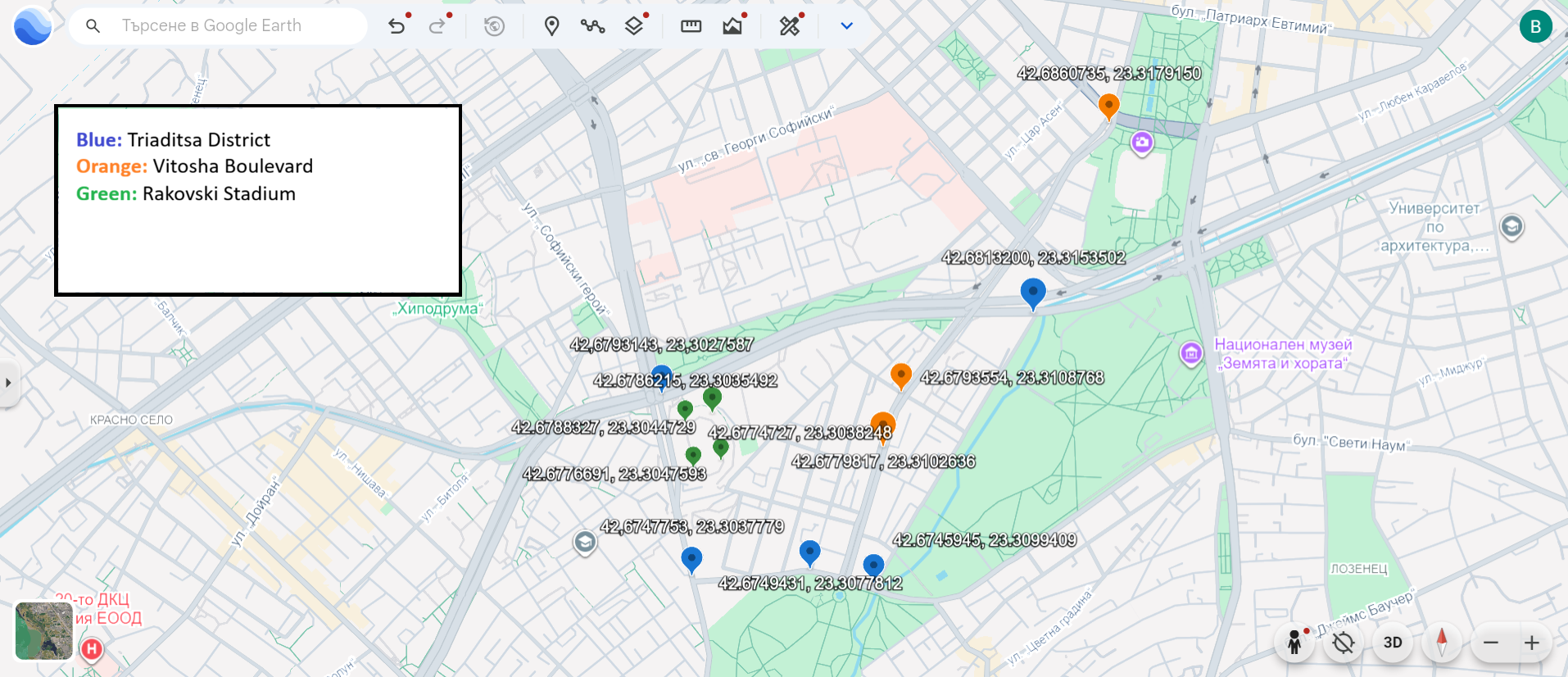
Here is the query, which searches for objects that intersect with Triaditsa district. Note that we explicitly perform regex search for objects whose "properties.name:en" contains the words stadium and boulevard, since it would be tough to find them in a result list, containing hundreds of other objects (Points).
{
  "geometry": {
    "$geoIntersects": {
      "$geometry": {
        "type": "Polygon",
        "coordinates": [[
          [23.3027587, 42.6793143],
          [23.3153502, 42.6813200],
          [23.3099409, 42.6745945],
          [23.3077812, 42.6749431],
          [23.3037779, 42.6747753],
          [23.3027587, 42.6793143]
         ]]
      }
    }
  },
  "properties.name:en" : { $in : [/stadium/i, /boulevard/i] }
}
We should see in the results documents for both Rakovski Stadium and Vitosha Boulevard.
Now, we do the same query as above, however instead of $geoIntersects, lets try to use $geoWithin:
{
  "geometry": {
    "$geoWithin": {
      "$geometry": {
        "type": "Polygon",
        "coordinates": [[
          [23.3027587, 42.6793143],
          [23.3153502, 42.6813200],
          [23.3099409, 42.6745945],
          [23.3077812, 42.6749431],
          [23.3037779, 42.6747753],
          [23.3027587, 42.6793143]
        ]]
      }
    }
  },
  "properties.name:en" : { $in : [/stadium/i, /boulevard/i] }
}
What do we notice? Only the Rakovski Stadium is found. The Vitosha boulevard does not match to the query, as only part of it’s shape (LineString) is within the Triaditsa district Polygon.
For completeness, we can also demonstrate $geoIntersects with a different geometry type. Suppose we draw a line through the city and want to find POIs that lie on that line. If we treat the line as a GeoJSON LineString query, $geoIntersects will return points that are exactly on that line (i.e., coordinates that intersect). This is a contrived example (exact matches are uncommon), but it shows the syntax:
{
  "geometry": {
    "$geoIntersects": {
      "$geometry": {
        "type": "LineString",
        "coordinates": [
          [23.315, 42.694],
          [23.330, 42.710]
        ]
      }
    }
  }
}
This would list any points that happen to lie along the straight line between those two coordinates. Likely, you won’t get results unless a POI’s coordinates exactly match a point on the line. In real scenarios, $geoIntersects is more useful for line/polygon datasets, but now you’ve seen how to use it.
5. Combining Geospatial Filters with Other Criteria
Geospatial queries can be combined with standard MongoDB field queries. For instance, you might want to find restaurants near a location, or parks within a certain area. This is done by adding additional conditions in the same query document.
You can simply include other fields in the query JSON alongside the geo query. All conditions must be true for a document to be returned (logical AND by default).
Example: Find all restaurants within 1000 meters (1 km) of a given point. In our dataset, OpenStreetMap POIs have an amenity field under properties (e.g., properties.amenity: "restaurant" for restaurants). We can target that. Suppose we use coordinates of Technical University of Sofia (just as another location example: TU-Sofia is roughly [23.3553, 42.6571]). The query would be:
{
  "properties.amenity": "restaurant",
  "geometry": {
    "$near": {
      "$geometry": { "type": "Point", "coordinates": [23.3553, 42.6571] },
      "$maxDistance": 1000
    }
  }
}
This query has two conditions: the amenity must equal “restaurant” and the location must be within 1000m of the given point (and results sorted by nearest). Compass will return only documents that satisfy both – i.e., restaurants in that area, sorted by distance. If you run this, you should see only places that are restaurants, cafes, eateries, etc., and all located around TU-Sofia within 1 km (likely places in the Studentski Grad neighborhood).
Another example: find all hotels (perhaps properties.tourism: "hotel" in OSM data) within a certain polygon. You would combine a normal equality filter with a $geoWithin. For instance:
{
  "properties.tourism": "hotel",
  "geometry": {
    "$geoWithin": {
      "$geometry": { ... polygon coordinates ... }
    }
  }
}
This would list hotels inside that polygon. You can mix and match any number of filters. MongoDB will use indexes if available (so if you also had an index on properties.tourism, that would help the above query). By default, these conditions are ANDed together. If you need OR or more complex logic, you could use $or or even the Aggregation Pipeline in Compass, but that’s beyond our current scope.
With these examples, you’ve learned how to query for:
- Nearest locations to a point.
- Locations within a radius.
- Locations inside an arbitrary polygon.
- Using intersects (and understanding the slight difference).
- Applying additional filters (category/type) on top of geospatial conditions.
All of these were done through Compass by writing JSON in the Filter field and could be accomplished with just point-and-click if Compass had a geoquery UI (as of now, writing the JSON is the way, which we have demonstrated).
Practice Challenges
To solidify your understanding, try solving the following challenges using MongoDB Compass and the Bulgaria dataset. Each challenge may require writing a query (or multiple queries) in the Compass filter. Think about which operator ($near, $geoWithin, $geoIntersects) and what other filters or parameters you might need.
-
Nearest Hospital: Find the closest hospital to the city center of Sofia. Use the coordinates of Sofia’s center (or a known location) as your reference, and filter for
amenity: "hospital". (Hint:$nearwith a limit can find the single closest match. In Compass, you can set the Limit to 1 to get just the nearest result. This is done into theOptionssection.) -
Bars within 300m: List all bars within a 3 km radius of Alexander Nevsky Cathedral (coordinates ~23.332956, 42.695833). Use the appropriate filter on
properties(OSM might mark bars asleisure: "bar"oramenity: "bar"in the data) and a$geoWithinor$nearquery to find those within 300 meters of the cathedral’s location. -
Neighborhood Query: Imagine you have the polygon for the Lozenets district in Sofia (or draw an approximate polygon around it). Write a query to find all points of interest that fall inside Lozenets using
$geoWithinwith that polygon. (If you don’t have the exact coordinates, create a rough polygon and still perform the exercise.) -
Intersecting a Route: You have a planned route (as a LineString) going from Sofia University to NDK (National Palace of Culture). Construct a query using
$geoIntersectswith a LineString (between those two points’ coordinates) to find any bus stops (amenity: "bus_stop") that lie along that route. (This is a hypothetical scenario to practice $geoIntersects; the result might be empty if none fall exactly on the line, but set it up as if you were checking which stops intersect that path.) -
Multiple Conditions: Find all museums within 1 km of a given point and that have “National” in their name. This will require combining a text filter on the name (you can use a regex like
"properties.name:en": /National/ifor case-insensitive match), also we want to filter only the museum objects via"properties.tourism" : "museum"and also$geoWithinor$nearfor the distance. Think carefully about how to structure this query JSON with three conditions. -
Outside a Radius (advanced): (Challenge) Find all emergency shelters or clinics that are more than 5 km away from the city center. This will involve using a geospatial query to get those within 5 km and then inverting it (perhaps using
$notor by comparing distances). MongoDB’s$minDistanceoption on$nearmight be helpful here to set a lower bound. Or maybe another option would be to use aggregation pipeline with the$geoNearoperator? (This is an advanced task and may require reading MongoDB docs for $minDistance.) -
Bonus – Which neighborhood? (Conceptual) If you had a separate collection of Sofia neighborhoods (each as a polygon), how would you find which neighborhood a given point (e.g., a specific landmark) belongs to? Describe which operator you’d use and how (you don’t need to code it fully here). (Hint: You would query the neighborhoods collection with $geoIntersects or $geoWithin using the point as the geometry.)
Try to solve these in Compass. For each, write down your filter JSON and note the results.